What are post-build actions?
Post-build actions define what Jenkins should do after the build completes.
| Action | Purpose |
|---|---|
| E-mail Notification | Send success/failure status to recipients |
| Archive Artifacts | Keep .jar, .war, logs, coverage reports |
| Trigger another job | Chain Freestyle jobs (pipelines do this better) |
| Publish test results | Show JUnit/test reports in the UI |
This lesson focuses on email.
Step 1 — Configure SMTP globally
Go to Manage Jenkins → System → E-mail Notification:
SMTP Server: smtp.gmail.com
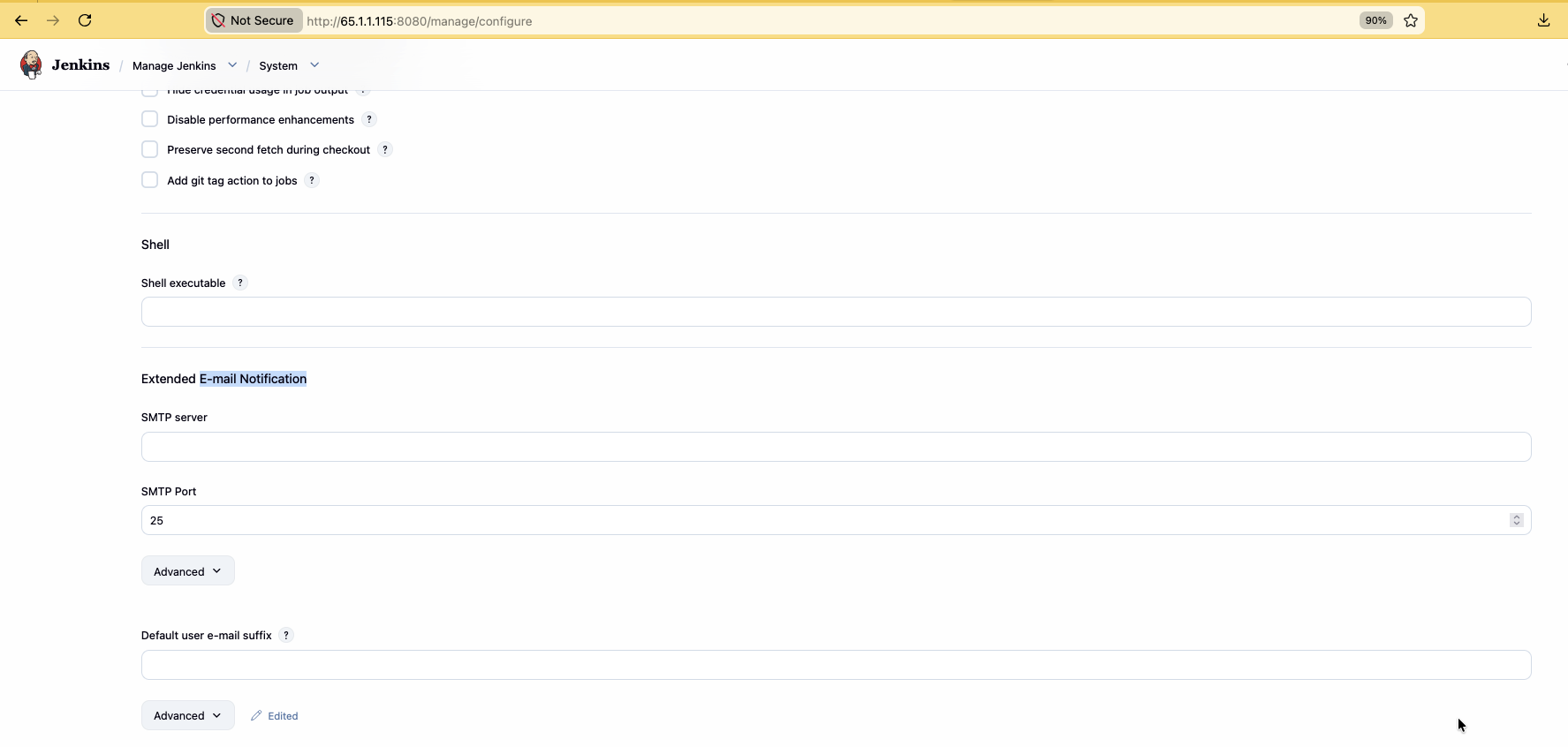
Click Advanced:
Use SMTP Authentication: checked
Username: your-email@gmail.com
Password: your-app-password   ← Gmail App Password, NOT your login password
Use SSL: checked
SMTP Port: 465
Also set the system admin email / Jenkins location email if prompted.
Gmail App Password
- Google Account → Security → 2-Step Verification (must be on)
- App Passwords → generate one for Jenkins
Link: https://myaccount.google.com/apppasswords - Paste that 16-character password into Jenkins SMTP settings
- Save
Step 2 — Add email on the Freestyle job
- Job → Configure → Post-build Actions
- Add post-build action → E-mail Notification
- Recipients (space-separated):
your-email@gmail.com teammate@gmail.com
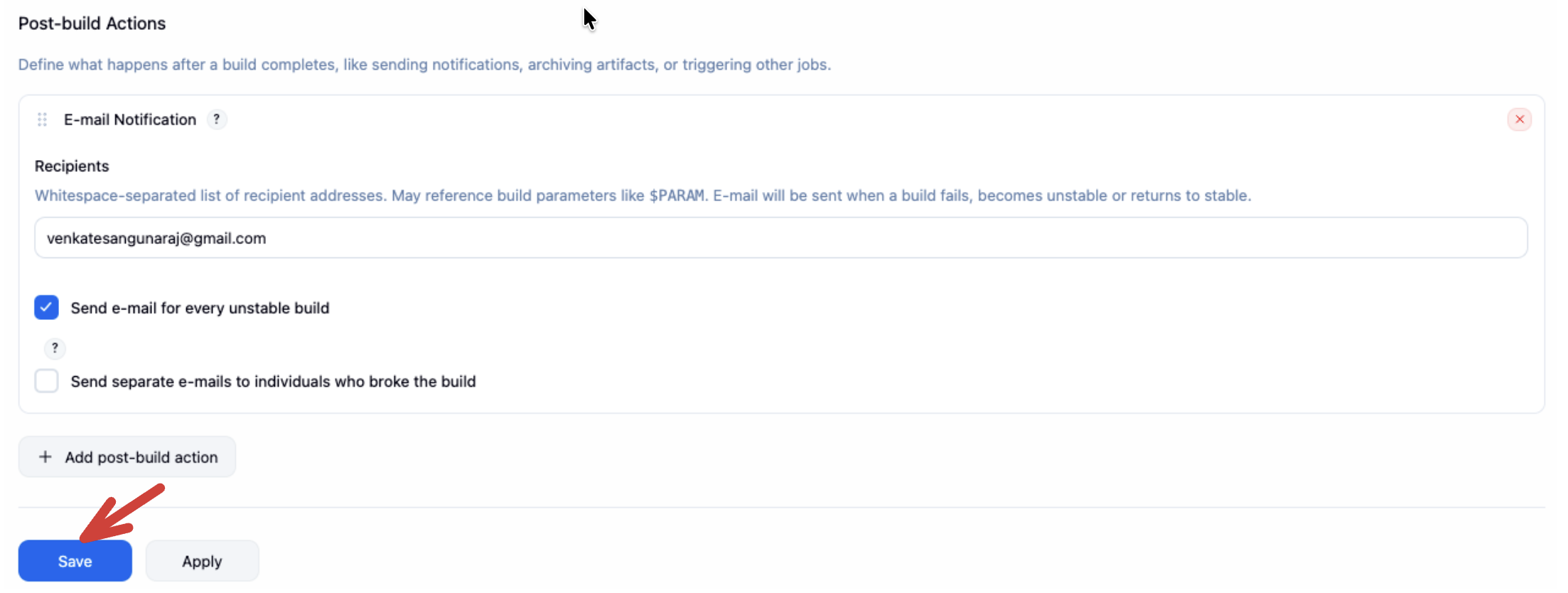
- Save
Default behavior (built-in email)
Build runs
    │
    ├── SUCCESS → often no email (unless configured)
    │
    └── FAILURE → email to recipients
            Subject: Build failed in Jenkins: my-first-job #14
            Body:    console log + error details
Force a failure once (break the shell script) to verify mail arrives.
Step 3 — Email Extension Plugin (success + failure)
For emails on success and failure, install Email Extension Plugin:
Manage Jenkins → Plugins → Available → search Email Extension → install → restart if required.
Then in the job:
- Post-build Actions → Editable Email Notification
- Under Advanced → Triggers, add: Always, Failure, Success
- Set recipients / content as needed → Save
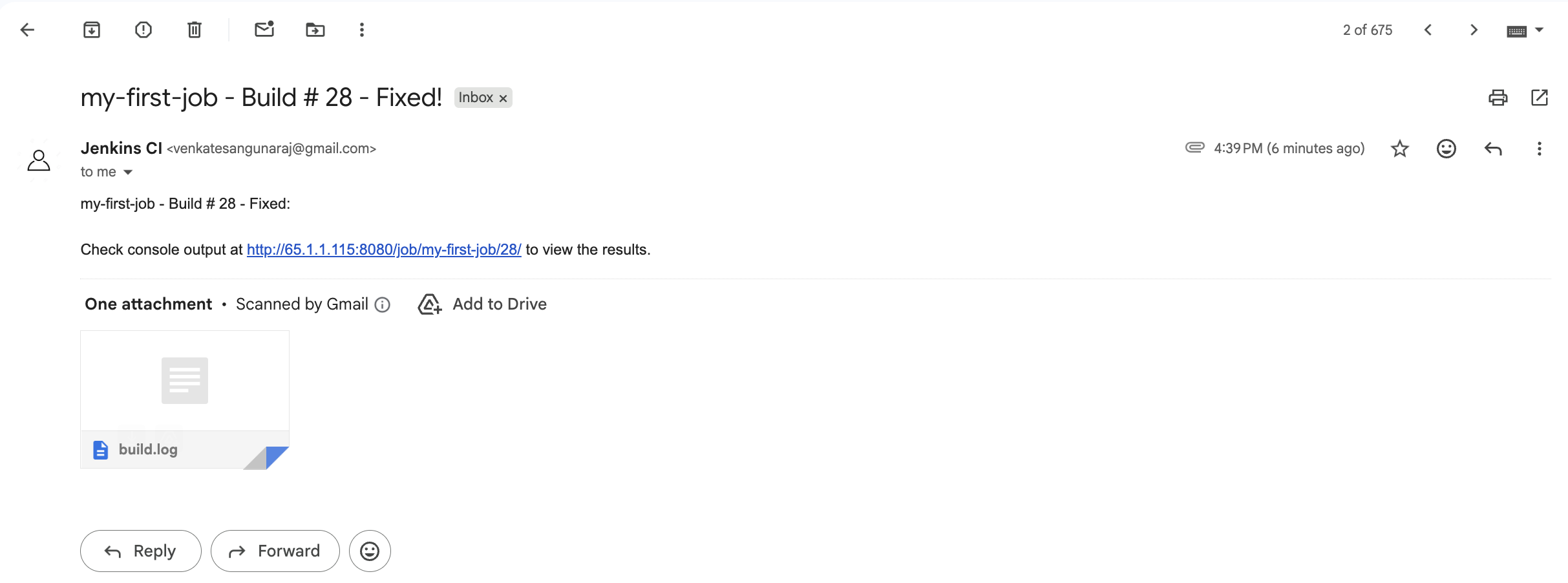
Pipelines (Project 2+) typically use the mail step or emailext inside a post { } block instead of Freestyle post-actions.