Why Docker on EC2?
Installing Jenkins on an AWS EC2 instance with Docker offers portability, easier setup, and better control over dependencies compared to packages or .war files.
EC2 setup
| Setting | Value |
|---|---|
| Instance type | t2.medium (2 vCPU, 4GB RAM) |
| OS | Ubuntu 22.04 LTS |
| Storage | 20GB gp2 |
| Security Group | Inbound: port 22 (SSH), port 8080 (Jenkins UI) |
t2.micro can install Jenkins but struggles under load and may freeze. Use at least a t2.medium for a stable lab.
Step 1 — Launch an EC2 instance
- AWS Console → EC2 Dashboard → Launch instance
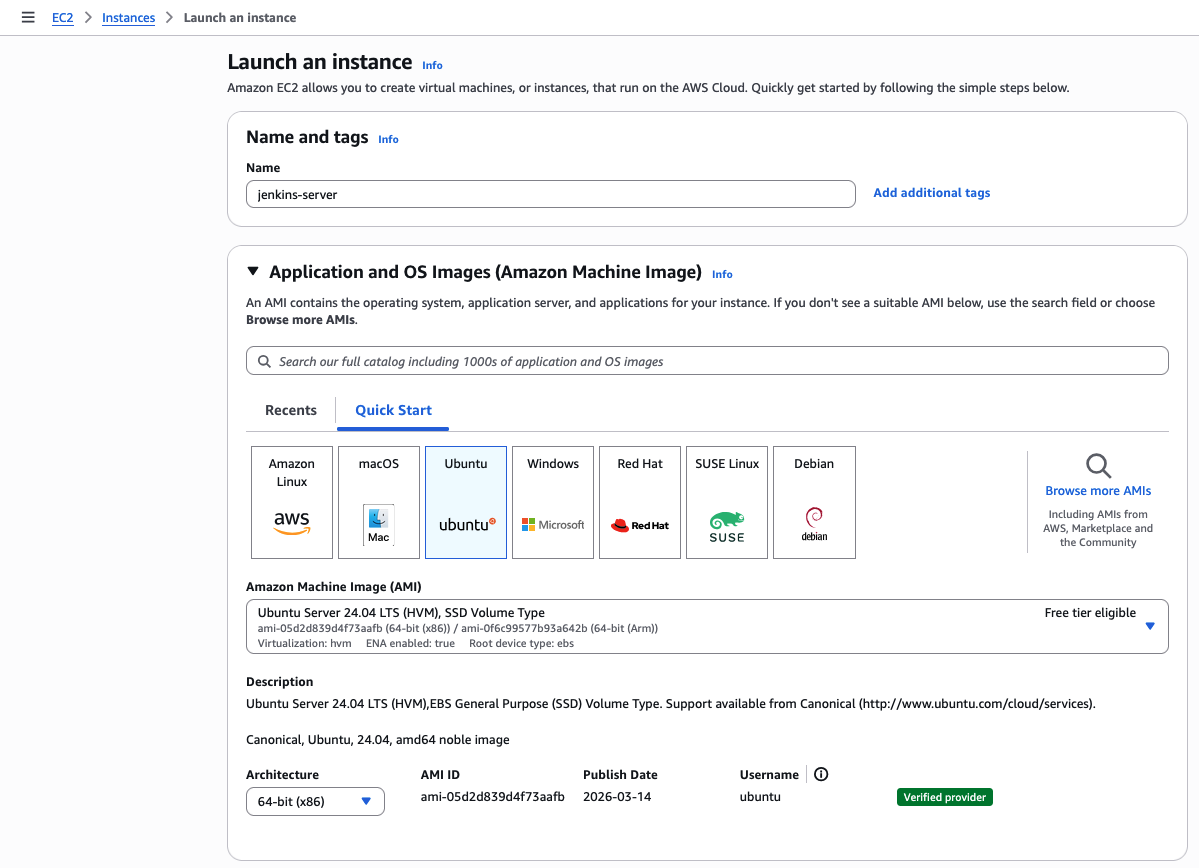
- Configure:
- Name:
jenkins-server - AMI: Ubuntu Server 22.04
- Instance type:
t2.medium - Storage: 20 GB minimum
- Key pair: Create or select an existing one
- Name:
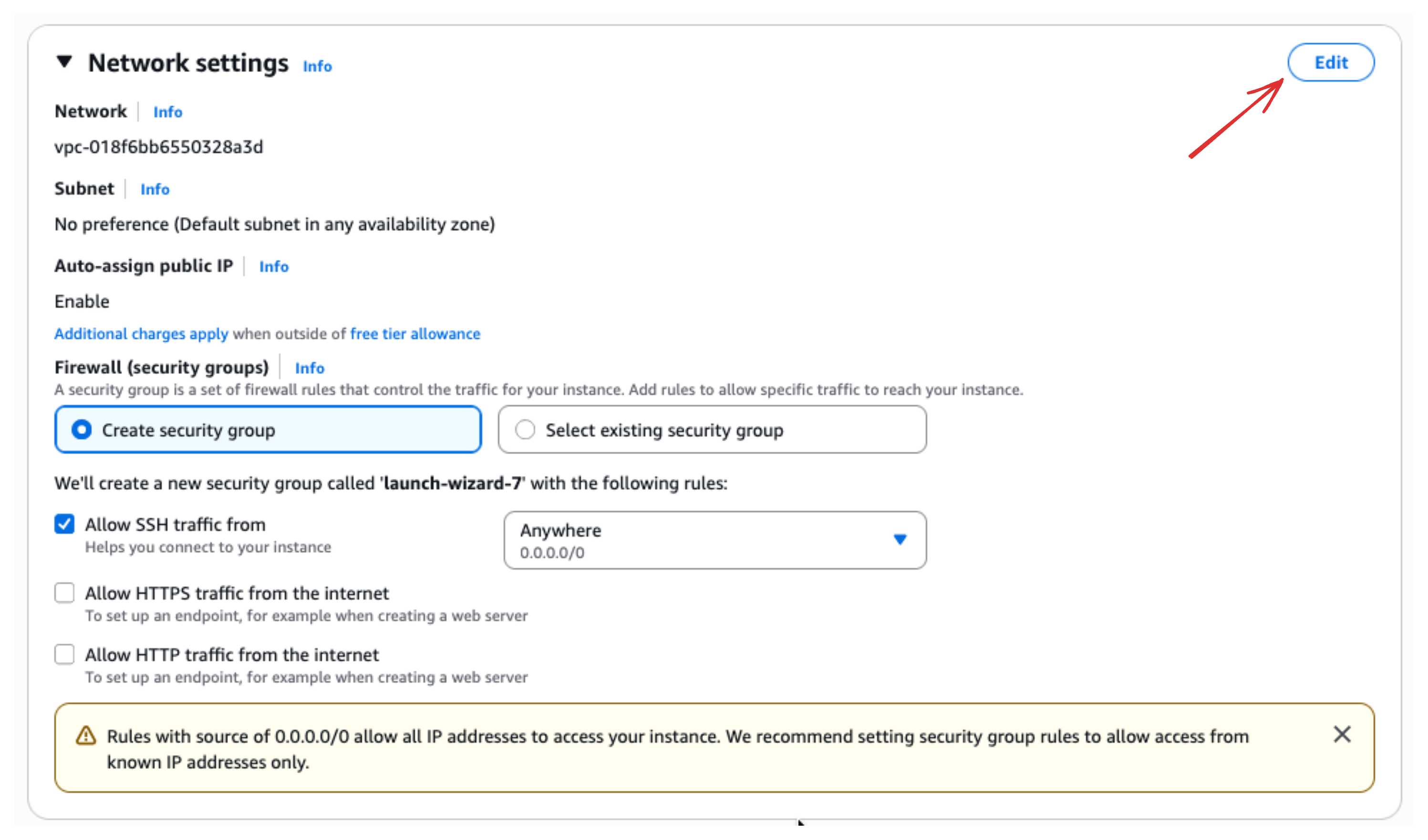
- Security Group — Edit inbound rules:
- SSH — port
22(your IP preferred) - Custom TCP — port
8080(Jenkins UI)
- SSH — port
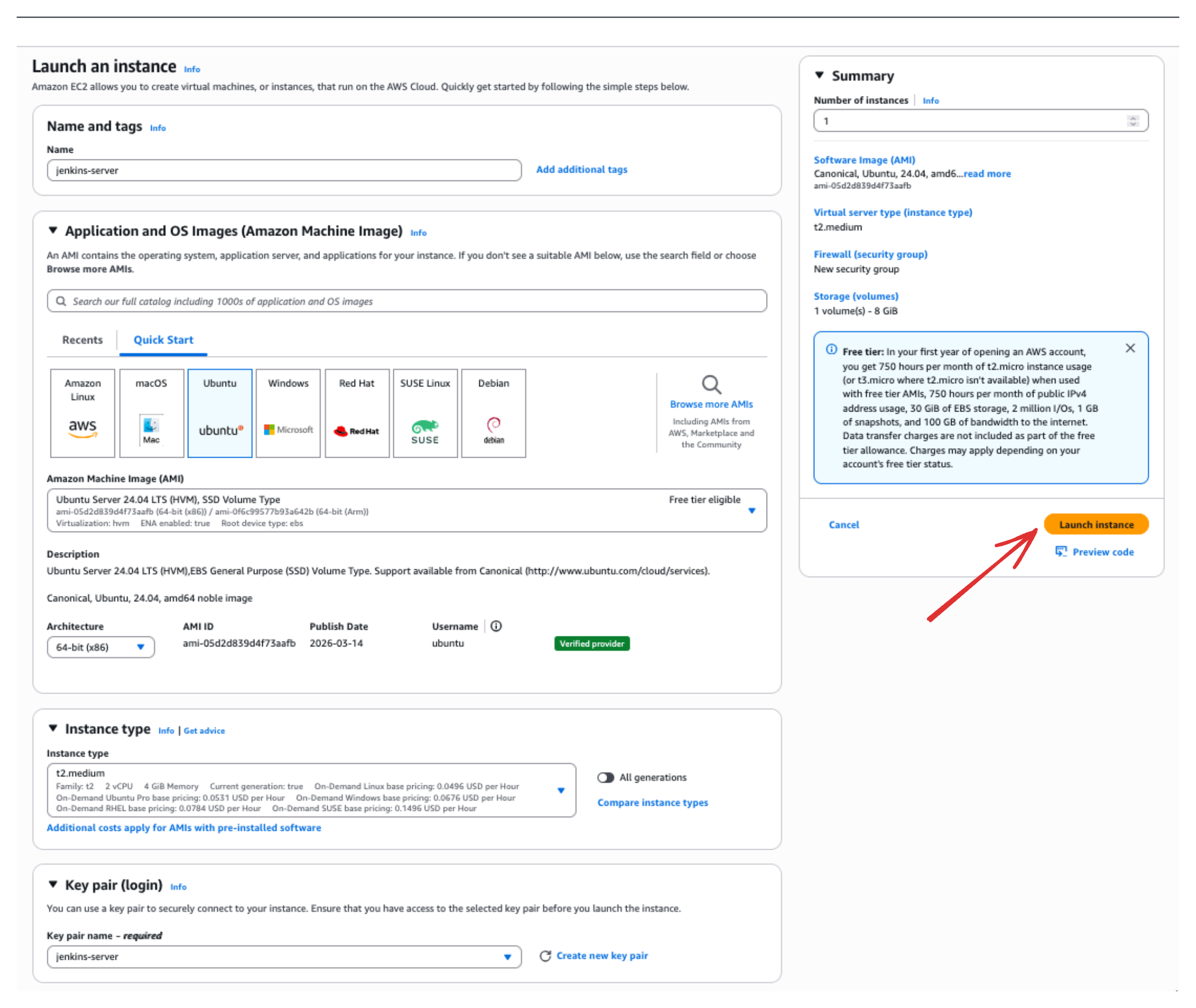
- Click Launch instance
Step 2 — Connect to EC2
Once the instance is running:
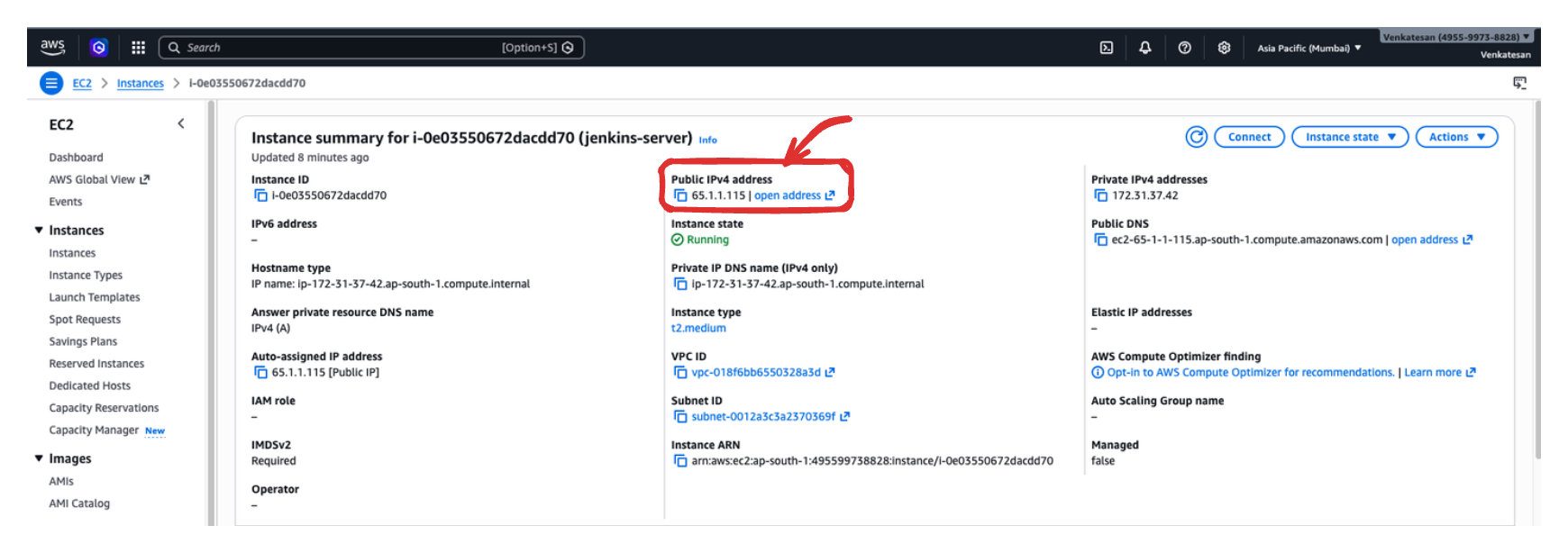
- Select the instance → Connect
- Use EC2 Instance Connect (browser terminal) or SSH with your
.pemkey - Copy the public IP — you will need it for the Jenkins URL
Step 3 — Update the system
sudo apt update && sudo apt upgrade -yStep 4 — Install Docker
# Install Docker
sudo apt install docker.io -y

# Start & enable Docker
sudo systemctl start docker
sudo systemctl enable docker

# Add ubuntu user to docker group
sudo usermod -aG docker ubuntu

# Apply group changes
newgrp docker
Verify:
docker --versionStep 5 — Run Jenkins with Docker
docker run -d \
  --name jenkins \
  -p 8080:8080 \
  -p 50000:50000 \
  -p 3001:3001 \
  -v jenkins_home:/var/jenkins_home \
jenkins/jenkins:lts| Port / volume | Purpose |
|---|---|
8080 | Jenkins web UI |
50000 | Inbound agents (Day 4) |
3001 | App port used in Project 1 |
jenkins_home | Persists jobs, plugins, credentials |
Docker pulls the Jenkins LTS image automatically on first run.
Step 6 — Get the initial admin password
docker exec jenkins cat /var/jenkins_home/secrets/initialAdminPasswordCopy this password — you will paste it into Jenkins next. Keep the terminal open.
Step 7 — Access Jenkins
Open a browser:
http://<your-ec2-public-ip>:8080
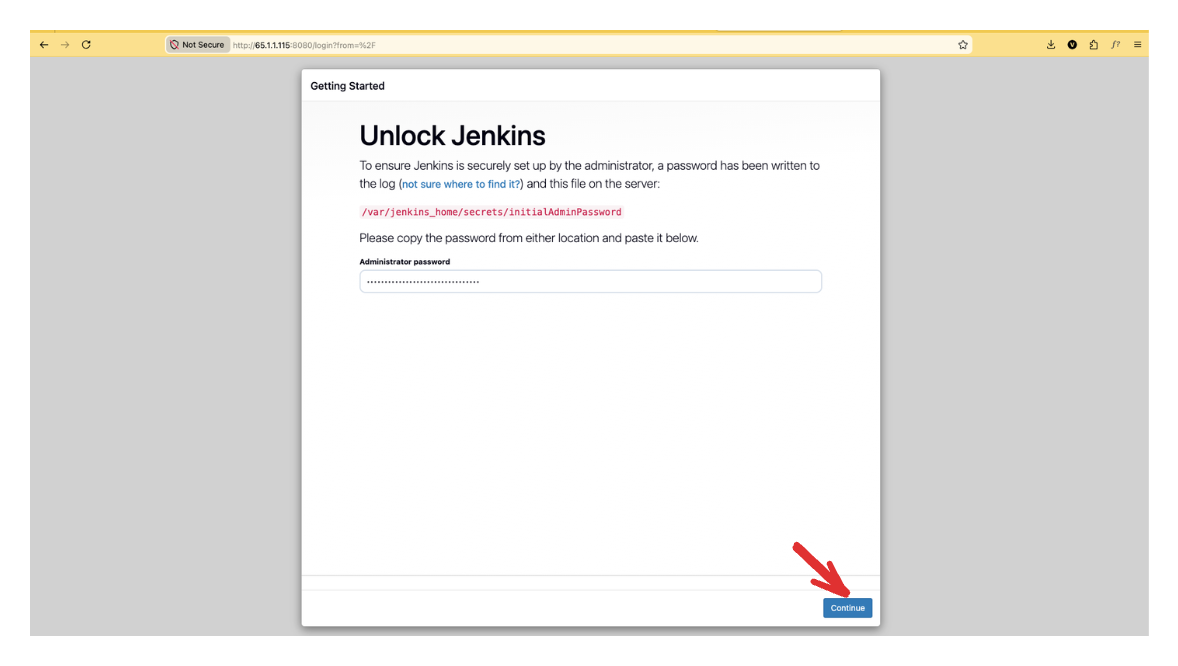
- On Unlock Jenkins, paste the password → Continue
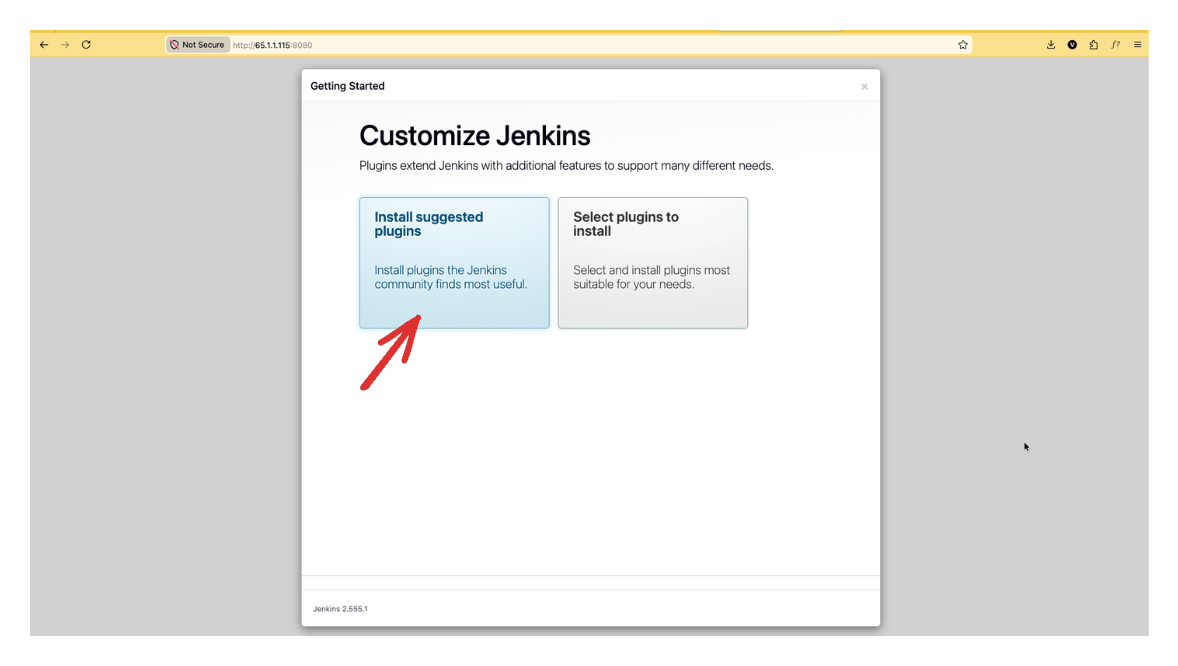
- Choose Install suggested plugins (takes 3–5 minutes)
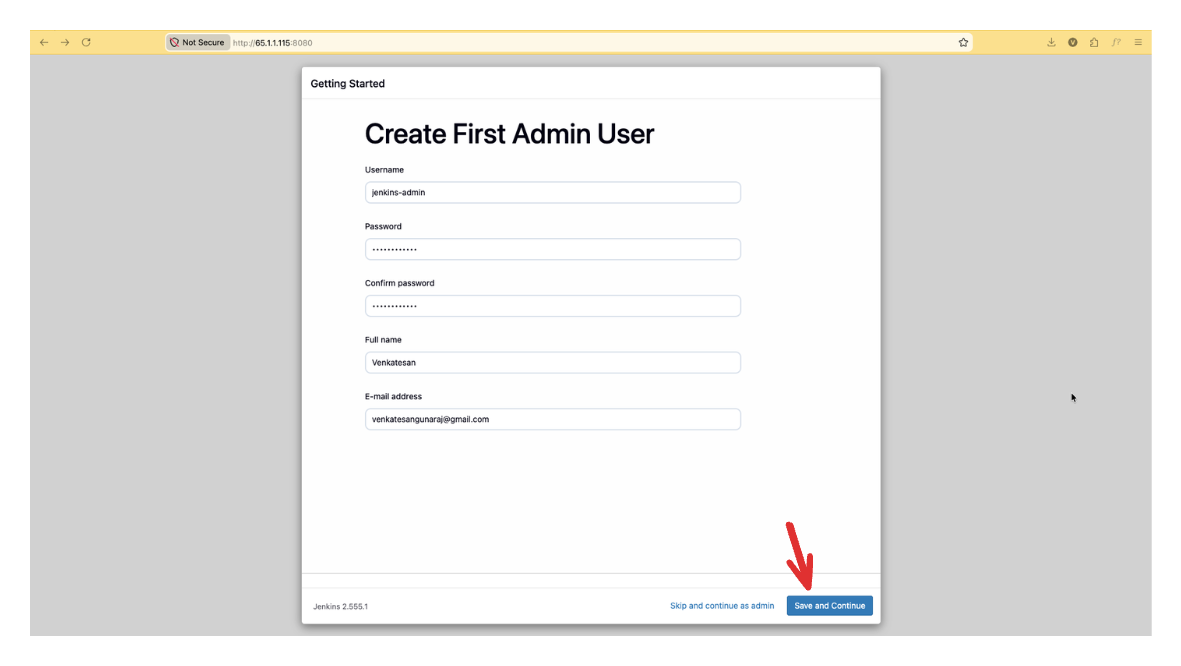
- Create your admin user (username, password, email) → Save and Continue
- Confirm the Jenkins URL → Save and Finish
Use a real email if you want email notifications to work on Day 2.
Step 8 — Verify Jenkins is running
docker psYou should see the jenkins container Up with ports 8080, 50000, and 3001 mapped.
Job configs and build history live in the jenkins_home volume. Stopping/starting the container keeps your data. Recreating the container without the volume loses nothing for configs — but tools you install inside the image (Node.js on Day 2) are temporary unless you bake a custom image.